Notes:
- For this guide, it’s assumed that the organization and group are preexisting.
- All Incontrol2 users must create a Peplink ID that they will use to log in to the InControl2 platform
- Organization users have access to all groups and devices found within that organization.
- Group users have access to only the group and devices within the group. Other groups within the same organization are not accessible.
Adding an Organization level user
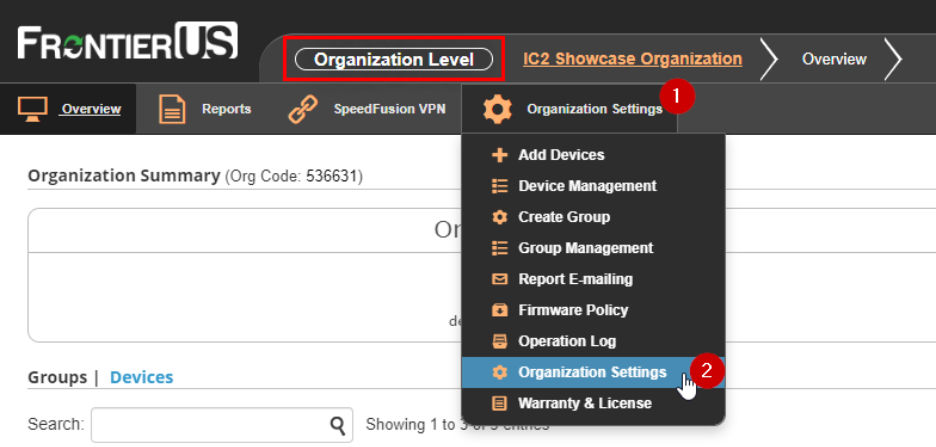
From InControl2 at the Organization level, click Organization Settings along the menu bar at the top and select the Organization Settings option from the menu.
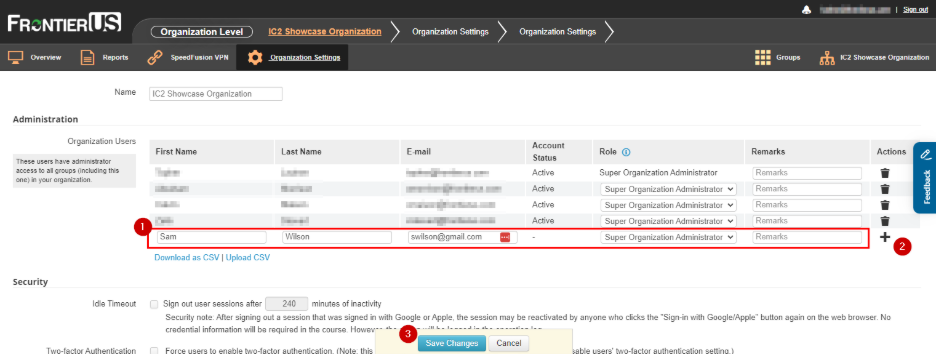
Enter the user’s name and email and the role you’d like for them, click the ‘plus’ icon on the right, and finally click the Save Changes button on the bottom of the page.
Adding a Group level user
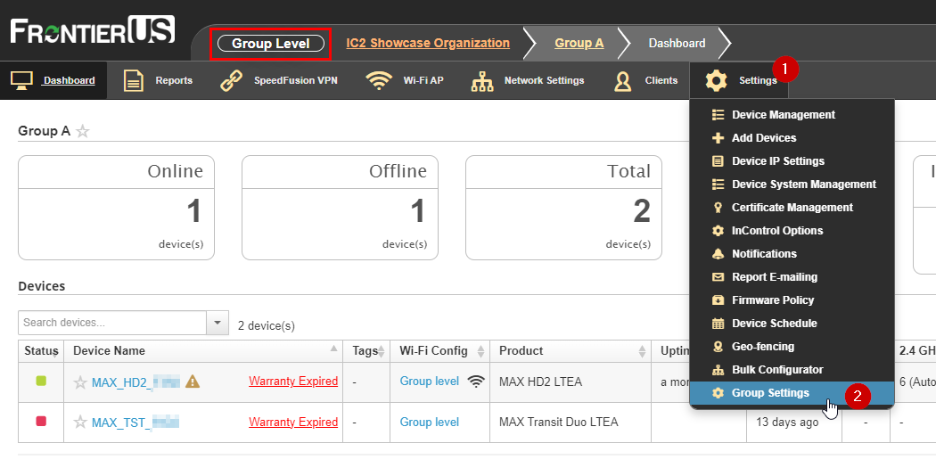
From InControl2 at the Group level, click Settings along the menu bar at the top and select the Group Settings option from the menu.
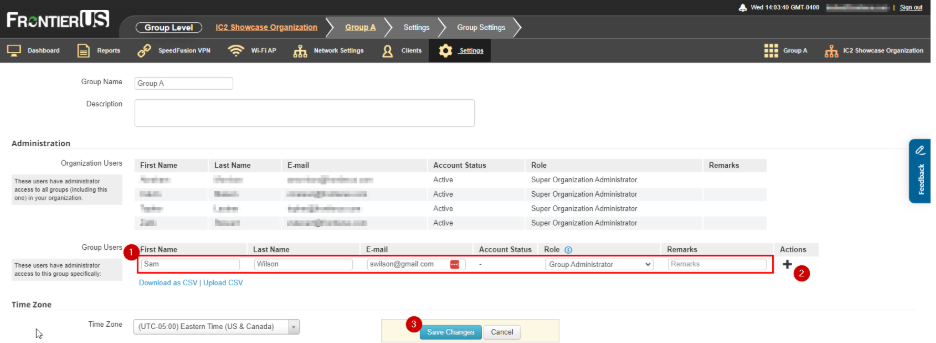
Here, you’ll see Organization users listed, but you can only add group level users. To add Organization level users, you need to be at the organization level.
In the Group users section, enter the user’s name, email, and the role you’d like for them, click the ‘plus’ icon on the right, and finally click the Save Changes button on the bottom of the page.
Was this article helpful?
That’s Great!
Thank you for your feedback
Sorry! We couldn't be helpful
Thank you for your feedback
Feedback sent
We appreciate your effort and will try to fix the article